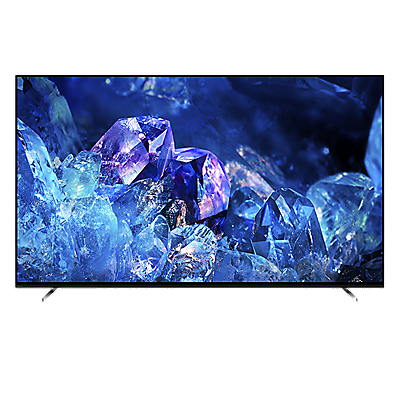







IMPORTANT: This article only applies to specific products. Please check the Applicable Products of this article.
The Quick Connect feature under Network & Internet settings lets you connect your TV to the same Wi-Fi network as a compatible Android™ phone without manually entering the Wi-Fi password. Quick Connect is intended only for sharing the mobile device’s current Wi-Fi connection with the TV. To connect the TV to a different network or if your phone does not support Quick Connect, enter the Wi-Fi password manually.
Before you start
Make sure that:
- Your Android mobile phone is connected to the Wi-Fi network you want to use with the TV.
- Your mobile phone supports sharing Wi-Fi network information through a QR code.
- The TV and mobile phone remain close enough for you to scan the QR code displayed on the TV.
Step 1: Display the QR code on the TV
- On the TV remote control, press the
(Quick Settings) button.
- Select
Settings.
- Select Network & Internet.
- Select Quick Connect.
A QR code appears on the TV screen.
Step 2: Scan the QR code with your Android mobile phone
- On the Android mobile phone, go to Settings.
- Select Network & Internet.
- Select Wi-Fi, and select the currently connected Wi-Fi network.
- Open Advanced Settings and tap Add device.
- Scan the QR code displayed on the TV.
Step 3: Confirm the connection
- If the connection is successful, the TV automatically connects to the same Wi-Fi network as the mobile phone.
- If the connection is unsuccessful, repeat the procedure.
- If your phone does not support this feature, you will need to enter the Wi-Fi password manually.
Notes:
- The QR code must be scanned using the method described in Step 2: Scan the QR code with your Android phone.
- Third-party QR scanner apps are not supported.
- This feature is only available on certain Android devices and may vary depending on the manufacturer and operating system version.