Don't worry - HDMI connection problems are more common than you might think, and most of them have simple solutions! If your TV displays no picture when you connect your device via HDMI, the following troubleshooting steps can help you get back to enjoying your content.
Before you start
Troubleshooting steps and solutions
Follow these steps to quickly find what’s causing the problem and get things back on track. Ready to restore your picture? Let's get started!
Sometimes, a quick power reset or restart can fix temporary issues:
Power Reset
Restart the TV
Use the supplied remote control and select the option that best matches your TV:
- Press and hold the POWER button until Power off appears on the screen.
- Press and hold the POWER button until a menu appears, then select Restart.
Use the Settings menu to select the option that best matches your TV
- Press the
 Quick Settings button, then select Settings → System → Restart → Restart.
 - Press the HOME button, then select Settings → About → Restart → Restart.
- Press the HOME button, then select Settings → Device Preferences → About → Restart → Restart.
Sometimes, a bad connection may occur and cause this problem. The next steps will depend on your TV model type:
Android TV™ and Google TV™ models
Other TV modelsDisconnect and reconnect the HDMI cable. The bad connection may occur temporarily and cause this problem. Follow the steps below then check if the situation will improve.
- Turn off all the devices.
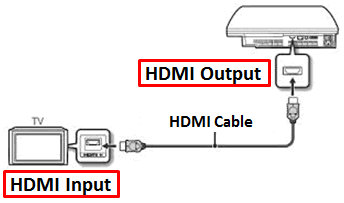
- Disconnect the HDMI cable from the HDMI Input terminal on the TV.
- Disconnect the HDMI cable from the HDMI Output terminal on the connected device.
- Reconnect the HDMI cable firmly to the same terminals as before on the TV and the connected device.
- Turn on the TV and the connected device, and turn them off. Then turn them on again to let the TV recognize the connected device.
Make sure the connected device is configured to output through its HDMI connection and the video format being output is compatible with the TV. The selected output may be visible on the display of your device or in the menus.

IMPORTANT: Some devices may output a 1080/24p or 1080/30p video signal, but some TVs can only accept a 1080/60p video signal. Changing the video output format of the connected device may resolve the issue. Check the manual or contact the manufacturer for further information about changing the video output format.
- If you are using an A/V receiver as part of your setup, it is important to ensure that all connections are correctly configured. Refer to your amplifier's manual to verify the settings and connection types. The amplifier or A/V receiver must be set up to properly forward the signal from your video device to the television.
- Sometimes, the amplifier may transmit the signal from a different HDMI port than expected. For example, it might send the signal from the HDM2 port while your video device is connected to HDM1. Make sure that the HDMI INPUT selected on your amplifier matches the HDMI INPUT on your TV.
- If the device is connected to an A/V Receiver or a different component before being connected to the TV, try connecting the device directly to an HDMI input on the TV. If the direct connection works, the issue may be that your receiver or component is not functioning as an HDMI repeater and is unable to pass the signal through to the TV.
- An HDMI repeater receives an audio/video signal from one HDMI device and passes it through to another connected HDMI device. While Sony products are supported for use with HDMI repeaters, products from other manufacturers may not be supported.
- If you are using an analog connection type (such as Coaxial, Composite A/V, Component A/V, or S-Video) to connect to an A/V receiver, be aware that your receiver may not be able to convert the analog signal to HDMI for output to the TV. Refer to the operating instructions provided with your AV receiver.
- The HDMI cable you are currently using may be malfunctioning or may be too outdated to deliver optimal performance. To determine if the cable is the source of the issue, replace it with a different HDMI cable and check whether the problem is resolved.
- If the issue persists after changing the cable
- Use the original HDMI cable to connect to a different video device.
- If the second device works correctly, this suggests that the first video device may be malfunctioning.
- it is recommended to consult the manufacturer of the device for additional assistance.
Note: If you want to view 1080p (50p/60p) quality picture on the TV from an external device, use a High-Speed HDMI cable with the HDMI logo as the connection cable.
If there's still no picture, perform a reset to the original factory settings:
Still having issues?
If the issue still occurs, repair may be required. Go to Product Repair.





























